 N
N
Ness
@Ness
Posts
-
creativity MONTH -
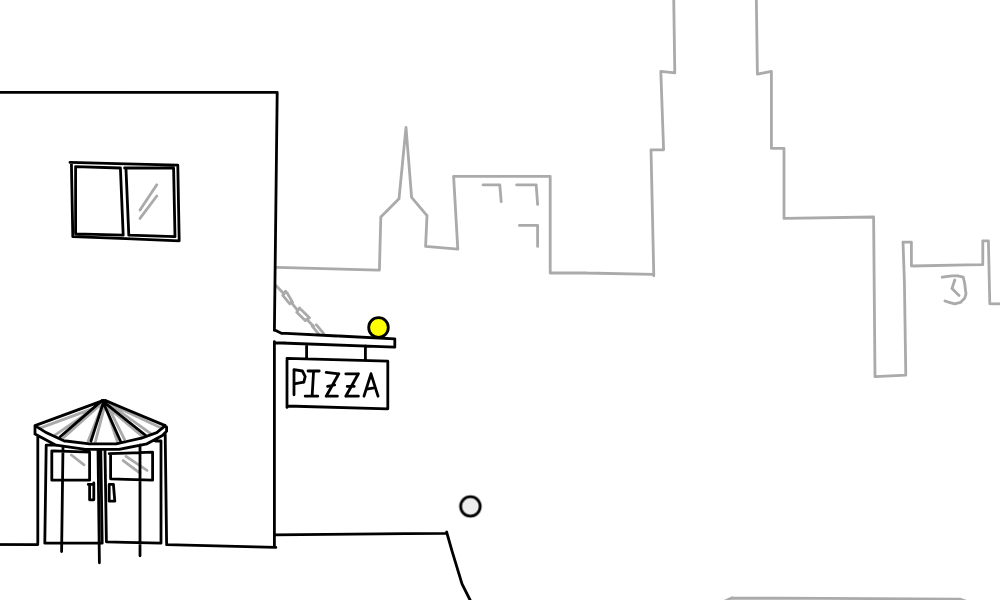
Coke n Pizzathis is a test comment. you can see it here on the track page: Coke n Pizza
-
Coke n PizzaCoke n Pizza by Cronus88
-
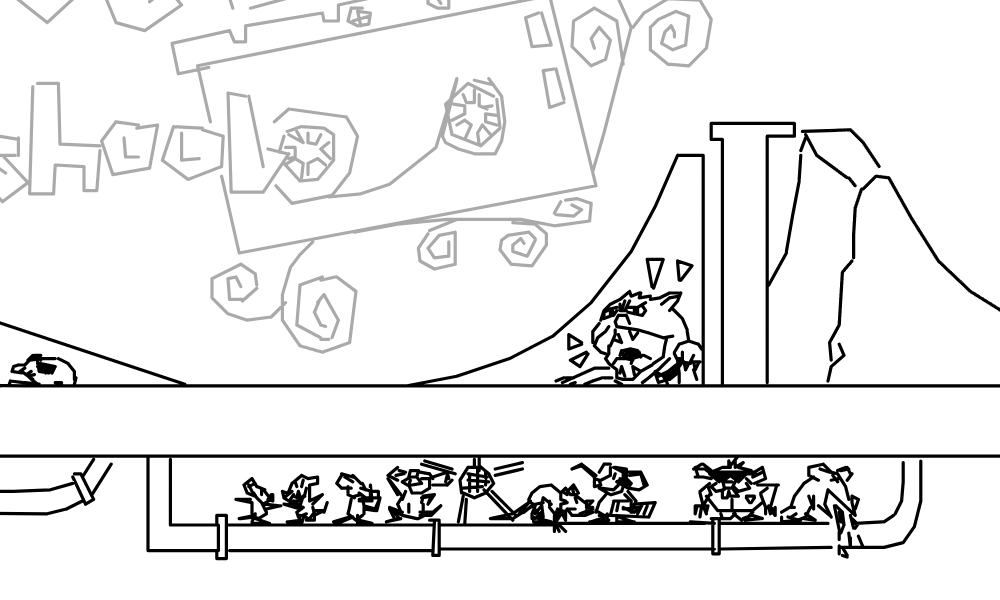
update: ghosts and live-rider@lightninggod super fun!! got 1st place for the moment
-
2-year anniversary of freerider.app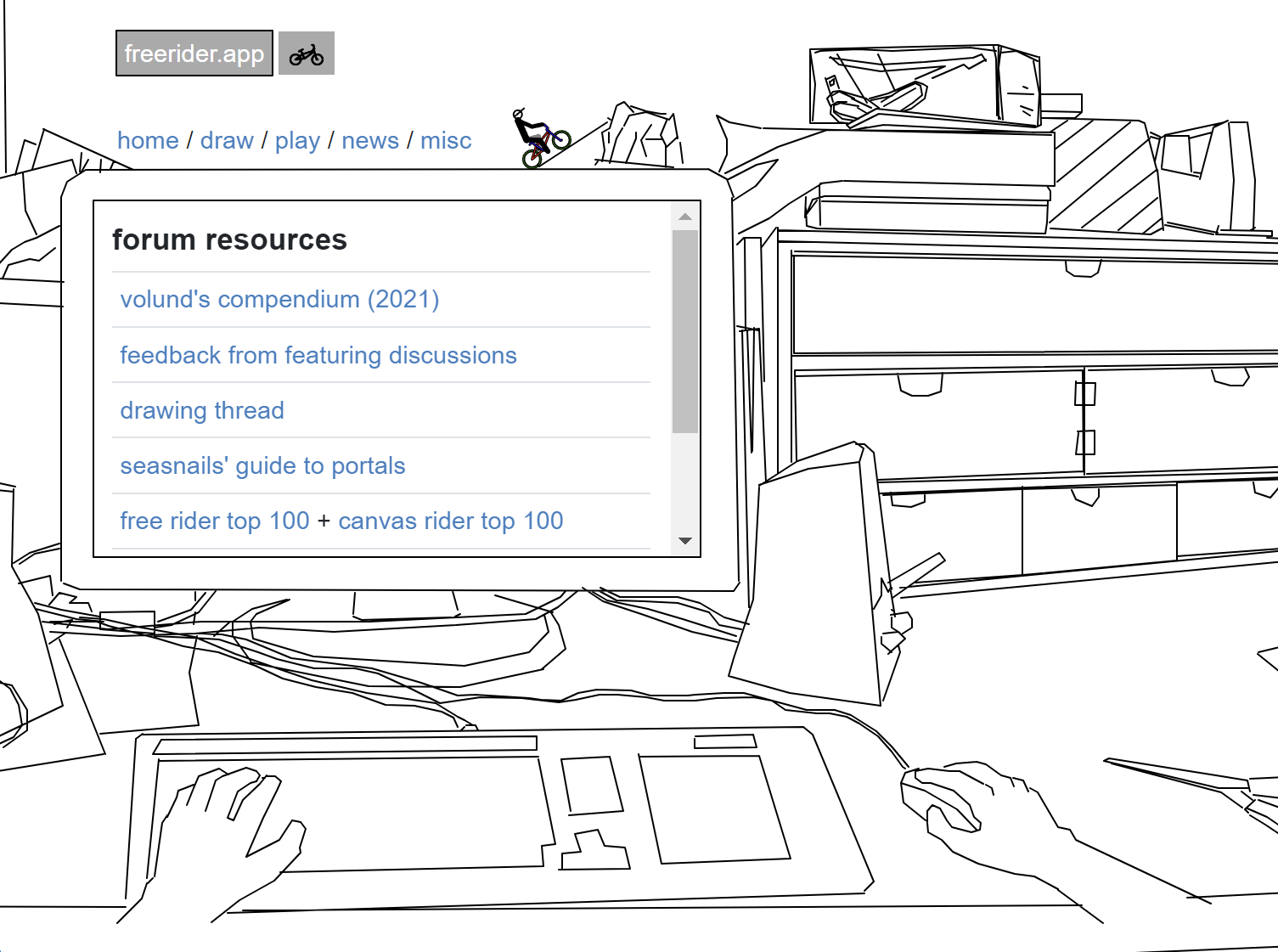
hey guys. so two years ago, March 20, 2024, I released the first version of freerider.app.
Click here to see the full blog post.
-
Frapp New Feature Suggestions@Sir__Human said in Frapp New Feature Suggestions:
But i wanted to ask you @Ness if you could add transparency to layers. Like still have them displayed however they could be slightly transparent, itd make drawing over reference tracks wayyy easier. thanks
Edit: this sounded like I was tracing. I meant reference sketch or like the pre sketch if you know what i mean. Like the thing you do before you go all in on a drawing. Like the rough outline so you dont waste too much time detailing and you realize it doesnt fit in your track and just looks like a shit in a sea of pissthis sounds super doable, pie and I will discuss it
@Innominate said in Frapp New Feature Suggestions:
@Ness I don't know how you make the skins for the community pages, but if you could make a dark version of litera, or make litera with Times New Roman across more of the text that appears that would be cool. I like this.
for sure, I will take a look at the skins. I didn't personally make them, but I can see if I can get the fonts to stay consistent through the sites
-
Frapp New Feature Suggestions@Ponjoja you could use the browser zoom to zoom in the webpage until toolbars to eventually show up (they would get very large on the screen), or if you have a touch-screen you could use that to pinch zoom
-
Share some of your favorites!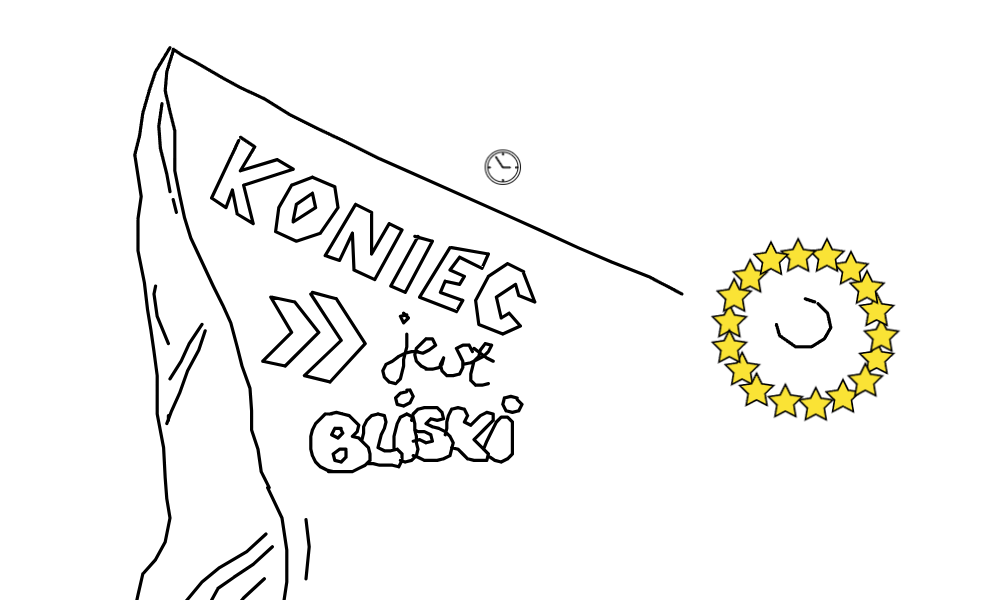
koniec jest bliski, by igi_killer
Koniec jest bliski is a Free Rider community classic track by igi_killer.
freerider.app (freerider.app)
really sick track styles, both Polish? I remember stig being particularly impressed with wronabezogona back in the day, and I fully agree, dude has got such a cool eye
-
creativity MONTHplaying dumb to dumpsters
delulu things I say on my trash route:
- the needle that stuck me was for insulin
- every cat that jumps in the dumpster jumps out
- it is my hair tickling my neck
- the filthier the trash can, the cleaner the house
- starting fluid is only used for engines
- rainwater is leaking down into my shoes
- people throw out pillows for other reasons than bedbugs
- my socks are made from a particularly itchy blend
- rice can wiggle a little bit
- the elderly woman that hasn’t had her trash at the curb for a few weeks is visiting family out of town
not much of a poem but something for day 1
-
Grok Rider HD -
update: ghosts and live-riderwhat's up guys, got a new update for y'all.
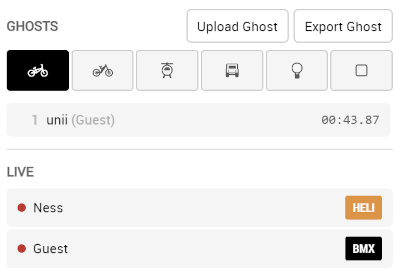
so @Pie42 and I have been working on a new version of ghosts for a while now. the idea was seemingly simple: a ghost format that, instead of saving keypresses, would save the bike's position and state every frame.
this would allow riders to make ghosts using any mod, like propeller or mini-bike, and maybe most interestingly, rewind and slow-mode. another cool aspect of this ghost format is the potential for Live Rider! being able to send the current state of the vehicles at any moment works out pretty well.
with this new db, there's a cool opportunity for a new ghosting system and leaderboard. but there are a few issues: the fr.app "ecosystem" is very open and free. switching gears and locking it down hard enough to make a fair leaderboard would be contrary to the site's goals.
so for the moment, the ghosts are simply a fun way to share your replays, play with mods, and just have a good time. check the now-playing tab and click on a ghost or a live rider to have the camera focus on them and watch them play!
and please be aware, these ghosts are in beta. very little has been done to safeguard these leaderboards from being cheesed, and the ghosts themselves may have unforeseen bugs. maybe in the future things will be set-up to have a more competitive ghosting mode, but that'll be left for the future after community discussions.
hope you guys enjoy!
-
2026 GHOSTING COLLAB -
rev. I: Import & Interfacenew stuff:
- live rider - play tracks with others (use https://freerider.app/login to have your name on the rider)
- search "live" for live sessions in db (also you can search "playlist" and "remix")
- added transform buttons and preview to the select tool (including invert)
- drag and drop layer reordering (re-added pie's layer improvements, my bad)
- added "import from code" to the track db to go back to the code import dialog easily
bug fixes/tweaks:
- right menu position fixed while sidebar is open
- opening sidebar while toolbox dialog is open now closes toolbox (moves toolbox back to sidebar)
- little description help box on sidebar is now correctly placed
- play mode now sets tool to camera so you can't draw
- mod settings save/apply fix (mods weren't saving like the other settings were)
- fixed "save as object" for teleport powerups
edit (some more):
- fix object sensitivity drop-downs
- fix visual bug on db header
- fix query not working on playlists
- fix alias searching (e.g. searching "tsunami" will now search "alex", "alexander", etc.)
- add db to sidebar
-
rev. I: Import & Interface@lightninggod !! yes the ghosts get uploaded to the db, but there is no leaderboard or anything atm. I had meant to disable ghost uploads until I could confirm they were 100% functional, but I guess there’s no harm in keeping it up. they are like 99% working right now lol
-
rev. I: Import & Interfacequick shoutout to @mbcool for the new object and layer icons! he really came through for us on those. thank you!
-
rev. I: Import & Interfacesince the start of developing fr.app with pie, we've had a bad habit of adding functionality without properly explaining how it works or how to access it. and as we've added features, it's become increasingly difficult to to fit everything in the existing menus.
in an effort to make the trackmaking experience easier and more straightforward for newcomers and veterans alike, we've updated the track editor interface!
and so we now present: the sidebar & toolbox!
clicking on the left menu icons and bottom menu buttons (where the text is) will either open up the corresponding sidebar tab or (if the sidebar is closed) the toolbox dialog. all the functionality once hidden is now visible and easily accessible, with descriptions and helpful tips too.
not only that, we have an improved user experience for manipulating objects and layers!
so check it out! we really hope you guys have a good time playing and making tracks with this new revision.
much love from @Pie42 and myself!
-
rev. I: Import & Interfacehey guys, absolutely psyched to show you the latest revision to freerider.app.
if you know me, you know I'm super passionate about Free Rider tracks and history. I believe tracks are works of art, and as such deserve to be both preserved and showcased.
so without further ado, I'd like to unveil the freerider.app DB.
accessible by clicking the Import icon and clicking browse the database or by navigating to https://freerider.app/tracks, you will find:
over 960k tracks (and counting) from Free Rider HD,
over 1m tracks from Canvas Rider,
and ~4.5k tracks from the thought-to-be-lost Black Hat Rider database, courtesy of Renée.in addition to the full archives, a personally curated DB of 1000 tracks is available to browse, with custom thumbnails and playlists, along with metadata such as collaborators, reuploads across databases, remixes, contest entries, and more.
and in an effort to have every track be playable as they were, all CR and BHR autos/hold-ups now fully work on freerider.app, and helicopter, truck, balloon, and blob can now be played as starting/base vehicles, no powerups needed.
I hope you guys enjoying playing through the archive. if you have any requests for tracks to be added to the DB or playlist ideas, feel free to share in the thread.
see the next post for part 2 of this revision!
-
Bug Reportsthe appearing lines that you’re showing, where are they? just randomly on the track canvas?
and i’ll look into the grid misalignment, happening with grid size 10? and do you by chance use a mousewheel or trackpad to scroll, or the buttons? does using the buttons (or clicking the % to reset to 100%) fix it?